LINE STYLES
Customers own their line styles. They import solid, dashed and dotted types, colors and widths through Digital Surveyor’s attribute panel to match their firm’s drawing standards.
Bringing clarity to Digital Surveyor, Mach9’s flagship LiDAR editor: one visual language that tells surveyors exactly what they’re hovering, selecting, editing or being suggested, without touching the line styles they draw with.
IMPACT
Every line and vertex in Digital Surveyor now says what state it’s in, on any point cloud and in any style a surveyor brings, and Mach9’s AI suggestions read as unmistakably Mach9.
−0%
MEDIAN TASK COMPLETION TIME
0
LINE STATES
0
VERTEX STATES
PROBLEM
Surveyors couldn’t tell what they were selecting, or what they were about to edit.
On a dense point cloud, drawn in dozens of their own line styles, every state blended into the drawing. And Mach9’s AI suggestions, something no other CAD tool has, had to stand apart from all of it.
HOW MIGHT WE
How might we follow the visual rules surveyors already know from CAD, while making the features only Mach9 has, like AI suggestions, impossible to miss?
RESEARCH
LINE STYLES
Customers own their line styles. They import solid, dashed and dotted types, colors and widths through Digital Surveyor’s attribute panel to match their firm’s drawing standards.
EXPORTS
Drawings leave Digital Surveyor in black and white for review and construction, and most of those lines are dashed or dotted. Color only helps tell lines apart on screen; it never classifies them.
DISPLAY
Surveyors switch colorization, LiDAR intensity and transparency mid-task to see features. A color that reads on one cloud disappears on the next.
SYNTHESIZED INSIGHTS
LIVING SYSTEM
The line belongs to the user. The state belongs to the UI.
Surveyors import their own line styles and export black-and-white drawings for review and construction, so Digital Surveyor can’t recolor or restyle a line to show what’s happening to it. Every state is drawn around the line instead: an outline, a hairline, an opacity, a point picker.
P1
WHY Line type is the only constant differentiator users have. A dashed or dotted state collides with a line type someone imported.
P2
WHY Users pick colors to tell lines apart, not to classify them, and the export is black and white. Lines and vertices inherit the layer's properties, so the screen matches the drawing.
P3
WHY Users switch colorization, LiDAR intensity and transparency all the time. States lean on light, blur and opacity, and the hover and selection colors stay configurable.
DRAWING AND EDITING A LINE
MULTI-LINE SUGGESTION
4px in the layer’s color and line type, with 12px vertices filled to match.
Final line = layer. What’s on screen is what exports, so users can trust it without a legend.
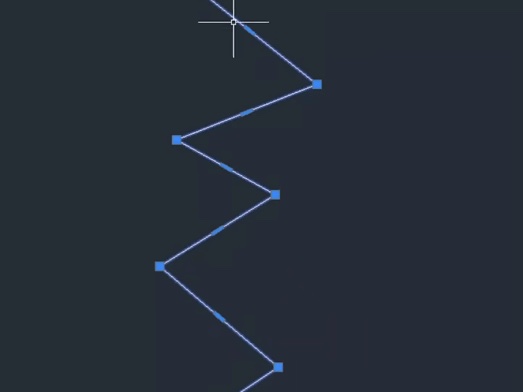
The line being drawn, in its own style, with a white dotted hairline on top and the point picker under the cursor.
Users confirm they’re drawing the right line before they commit. The hairline, not a new style, says it isn’t finished.
A wide grey outline behind a dark keyline. The line’s color and type don’t change.
It reads as “clickable” on any point cloud without looking like a new line type.
A crisp yellow outline around a dark keyline; the picked vertex gets a yellow ring.
One bright selection color that holds up in intensity views, and the user’s color stays untouched.
The vertex rides the point picker with move arrows; the old shape stays as a 30% ghost, with a dashed line from where the vertex started.
Users see what they changed and how far before they let go.
The layer’s line type at 50% opacity, with glowing vertices in the layer’s color, until Tab accepts it.
Users see exactly what they’ll get. Transparency, not a new style, marks it as not theirs yet.
12px, filled with the line color, with a thin dark edge.
Grows to 14px with a 3px white ring, so the pick is confirmed before the click.
A 2px yellow ring, the same yellow as the line’s outline.
On a 44px tan point picker with four move arrows, while it’s dragged.
A 50% white ring: where the next point lands, under the point picker.
Glows in its layer’s color, in the viewport and the cross section. Accepted, it settles into a default vertex.
The same glow, pulsing, so the point under review catches the eye.
The glow with a solid white ring: picked, still not accepted.
Hollow, with a cross. Marks where the line meets the section plane.
Disappears, so nothing is left behind to misread.
A 50% ring, pulsing: any vertex can be the new starting point.
A soft 16px target says the cursor is locked to a point.
1.5px white, 2/2 dots, on top of any line with active vertices: drawing or editing.
The lightest mark that still separates "in progress" from "done".
A 44px tan disc under the cursor; move arrows while a vertex is dragged.
Shows exactly which point is being picked in a dense cloud, and that it can move.
The shape before the edit, 2px at 30% of the layer color.
Users can compare before letting go, and see what Escape would restore.
Dashed white from where the vertex started to where it is, with its length.
How far it moved, in survey units, at a glance.
Dotted distance line with an arrow, blue, green or red by plane, with its length.
Shows which orthogonal plane the preview is moving in, in the axis colors users already know.
Dotted #DCDCDC arrow.
Direction without a plane, so it stays neutral.
4px #478BE6. 50% while a suggestion runs, 2px when hand-drawn.
The one reserved hue: a reference for extraction that is never a deliverable line.
Green dashes across the window between two blue handles that set how wide extraction reaches.
Marks how far extraction reaches, and stays on the last accepted vertices so accepted and suggested separate.
Translucent blue, outlined in blue, with a station line where the cross section cuts.
Frames the area the model is working on, so the rest of the cloud stays readable.
CONTROLS
OPEN QUESTIONS
EDGE CASES
Five places where the obvious visual broke, and what the system does instead.
DRAWING
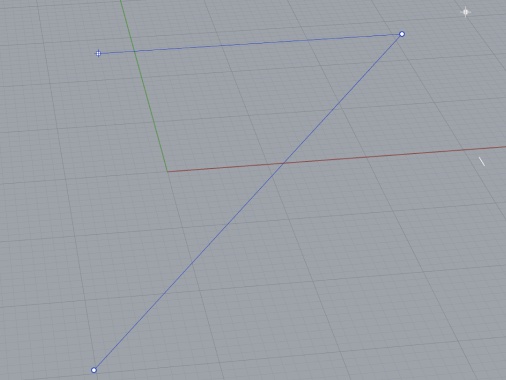
A surveyor drawing a dash-space line couldn't tell it from the preview, which looked just like their dashed layer. The preview now matches the line being drawn. Rhino and Plasticity don't add a preview style to polylines either.
DISPLAY
Colorization and intensity change constantly, and a fixed preview color that works on one cloud disappears on the next. No single color works in every case, so the preview keeps the layer color and the UI colors are configurable.
EDITING
When lines cross at a vertex, users can't tell which one they're about to drag. The line with active vertices gets a hairline above it, so the right vertex is traceable.
HOVER VS SUGGESTION
Design problem 1: how do we separate a mouse-hover preview from a suggested line and stay consistent with CAD logic? Hover keeps the line and adds a grey outline; a suggestion keeps the line type and drops its opacity. Neither borrows a dash.
SELECTION
A selected line is committed work, so preview-style vertices on it send mixed signals. Its vertices stay default, and only the one you pick turns yellow.
COMPARISON
Side by side with the CAD tools surveyors already know, redrawn to one scale.
DRAWING A LINE
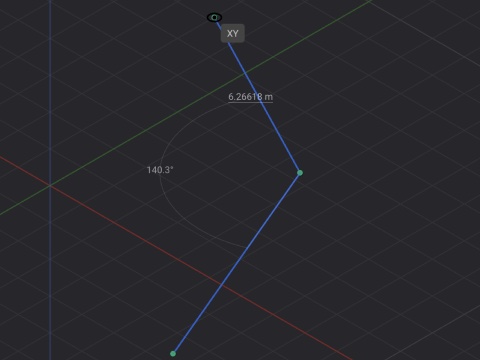
None of them restyle the preview: it’s the line you’re drawing, in its own color. Plasticity adds the plane and the length; Digital Surveyor keeps the line, adds a dotted hairline and puts the point picker under the cursor.
SELECTING A LINE
AutoCAD glows and adds grips; Rhino turns the whole line yellow. Digital Surveyor can’t recolor a line the user colored, so the yellow becomes an outline around it.
EDITING A VERTEX
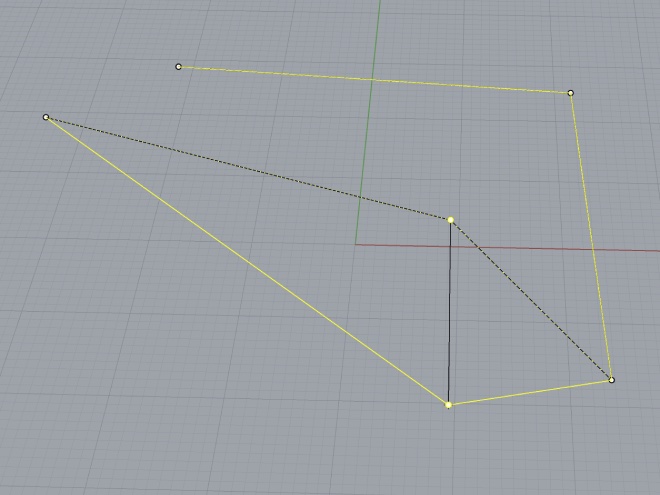
Both show the moving segment as a dotted rubber band, with a hot grip in AutoCAD. Digital Surveyor keeps a ghost of the old shape, puts a dotted hairline on the new one, and shows how far the vertex traveled.
TAKEAWAYS